Saturday, March 13, 2021

Quick Exploratory Data Analysis with SweetViz

I recently came across a Python library that is useful for quick exploration of a dataset (or two) in a Jupyter notebook, SweetViz.

Code:

try:
    import sweetviz
except:
    !pip install sweetviz --user
    import sweetviz
import pandas as pd
df = pd.read_csv('https://raw.githubusercontent.com/callysto/hackathon/f7454f5d9234df2575ceb7b8983340e512fad24d/SustainabilityOnMars/Tutorials/pets_from_bootstrap_world.csv')
analysis = sweetviz.analyze(df)
analysis.show_notebook() # or export with show_html()


Here is a brief notebook demonstration.

Saturday, January 9, 2021

Getting Student Submission Data from Brightspace with Python and Selenium

As a teacher with students in multiple Brightspace courses, I was looking for a dashboard to show which students have unsubmitted assignments. While Brightspace does have an API available, I decided that it wasn't going to work for a few reasons. There are also commercial (non-free) plugins that can do most of what I was looking for, but this was a good opportunity to explore scraping of content from dynamic web pages with Python.

You may be familiar with the Python Requests and Beautiful Soup libraries, which are great, but since Brightspace is requiring a Microsoft login I needed to go with Selenium. Selenium is designed for automating web browser interactions, which means we can use it to log in to a site and scrape pages.

While Selenium can be installed and run locally, it also works in a Colab notebook:

!apt update
!apt install chromium-chromedriver
!pip install selenium
from selenium import webdriver
from selenium.webdriver.support.ui import WebDriverWait
from selenium.webdriver.support import expected_conditions as EC
from selenium.webdriver.common.by import By
options = webdriver.ChromeOptions()
options.add_argument('--headless')
options.add_argument('--no-sandbox')
browser = webdriver.Chrome(options=options)

Once that is set up, we need to log in to our Brightspace server:

email = 'teacher@example.com'
base_url = 'https://example.brightspace.com'
import getpass # so you don't show your password in the sourcecode
password = getpass.getpass()
email_field = (By.ID, 'i0116')
password_field = (By.ID, 'i0118')
next_button = (By.ID, 'idSIButton9')
browser.get(base_url)
WebDriverWait(browser,10).until(EC.element_to_be_clickable(email_field)).send_keys(email)
WebDriverWait(browser,10).until(EC.element_to_be_clickable(next_button)).click()
WebDriverWait(browser,10).until(EC.element_to_be_clickable(password_field)).send_keys(password)
WebDriverWait(browser,10).until(EC.element_to_be_clickable(next_button)).click()

From there it's a matter of scraping the course progress pages as we loop through the course IDs and student IDs. I may update this post later with an automated way to scrape these IDs, but for now we need to look them up on Brightspace and code them in:

import pandas as pd
df = pd.Series(students).to_frame('ID')
for course in courses:
    course_id = courses[course]
    submissions = []
    for student in students:
        student_id = students[student]
        url = base_url+'/d2l/le/classlist/userprogress/'+str(student_id)+'/'+str(course_id)+'/Assignments/Details'
        browser.get(url)
        WebDriverWait(browser, 10).until(EC.presence_of_element_located((By.CSS_SELECTOR, "span[class^='d2l-textblock']")))
        elements = browser.find_elements_by_css_selector("span[class^='d2l-textblock']")
        #elements = browser.find_element(by=)  # because the other thing is deprecated I guess
        
        #submitted = elements[13].text[1:-1] # to get a fraction
        submitted = elements[13].text[1:-1].split('/')[0] # to get just the numerator
        submissions.append(submitted)
    df[course] = submissions
df.to_csv('student-submissions.csv')
df

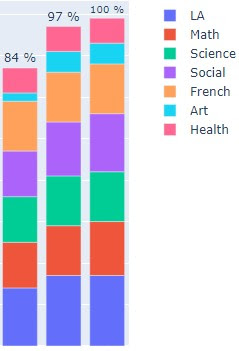
This will give us a Pandas DataFrame (and a CSV file) with information about how many assignments each student has submitted in each course. We can manipulate this a bit to create some visualizations, but perhaps that's a post for later. For now, here's part of a chart that we could generate:


Let me know if you try this or if you come across anything that should be corrected.

Saturday, September 19, 2020

Bookmarklet for Generating a Link to Copy a Google Doc, Sheet, Slides, or Drawing

If you want students to create a copy of a Google Doc, Sheet, Slides, or Drawing, you can replace the /edit at the end of the link with /copy.

To make that easier, I've created a bookmarklet. To set it up for yourself, drag the following link to your bookmark bar or menu:

MakeCopy

Then when you have a Doc, Sheet, Slides, or Drawing open (and you've set the sharing permissions) you can click the bookmarklet and it will generate a link that you can copy and send to your students. When they click the link it will prompt them to make a copy.

Tuesday, June 9, 2020

Streaming OBS Recordings to YouTube

Currently OBS Studio can only stream to a single service, such as Facebook or YouTube, but we are going to set up a way to stream to another service at the same time. Assuming that you are already comfortable streaming to Facebook, YouTube will be our second service.
You'll need to install FFmpeg and Python 3.
The following Python code can be saved as something like second_stream.py and run from there.
Replace xxxx-xxxx-xxxx-xxxx with your stream key from YouTube Studio, and /home/username/Videos with the path to the folder where OBS records your videos. You may also need to include the ffmpeg_path.
This code finds the most recent file in your OBS recordings folder and streams that file to YouTube. You may want to enable the setting "Automatically record when streaming" in OBS, otherwise you'll need to click "Start Streaming" and "Start Recording" each time.
Start recording in OBS then run the code, and it should start streaming the recording to YouTube without interfering with your primary stream. You will, of course, need enough upload bandwidth for both streams.
Potentially you could have another copy of this Python script running to streams the recording to a third service, such as Twitch.

Hopefully that helps get you started with secondary streams from OBS Studio. Let me know if any of this doesn't work for you.

Saturday, February 29, 2020

Authoring Open Educational Resources using only Open Source Software

Recently a leader in the Alberta OER community, Michael McNally, suggested that it is difficult or impossible to only use open source software (OSS) when creating open educational resources (OER). I agree with his point that using only OSS doesn't make OER more "pure", but perhaps it is still an interesting challenge.

Here are some of my suggestions, please comment if anything is missing. And I do understand the hypocrisy of posting this on a Google-hosted blog.

Writing Text

Text is still often the primary medium for OER, and there are a number of great open-source text-authoring tools. LibreOffice is a great office suite, and it is similar to traditional office suites so there shouldn't be much of a learning curve.

If you prefer collaborative writing, perhaps check out Nextcloud. You'll need to host it somewhere, if you are in Alberta consider Cybera's Rapid Access Cloud which uses OpenStack.

Diagrams and Graphics

Inkscape is a great vector editing and layout program. For image editing and creation, check out GIMP, Krita, or MyPaint.

Audio

One of the best simple audio recording and editing programs is also open source, Audacity. There are others, of course, but it should do everything you need.

Video

My favorite open-source video editing program is Open Shot, but you may also want to check out Shotcut.

Hosting video is another issue, though. You can host videos in a learning management system such as Moodle, or check out alternatives such as MediaGoblin, Kaltura, or ClipBucket.

Operating System

Linux has gotten much easier to install and use if you'd like to replace Windows or MacOS. My current favorite distribution is Peppermint.

Hosting

As previously mentioned, Albertans can avoid the big five cloud providers by running servers on RAC, but your institution may have self-hosted instances of Pressbooks or similar open-source hosting platforms.


Hopefully those cover anything you may need to use when creating OER with OSS. In some cases these tools are preferable to commercial products.

Of course if you are philosophically opposed to proprietary software then you are probably already familiar with most of these.

As always, please comment if you have any other suggestions.

Monday, February 3, 2020

Getting new copies of Jupyter notebooks with shutil and nbgitpuller

Getting a Fresh Set of Jupyter Notebooks

If you would like to update your copy of notebooks, for example on the Callysto Hub, you can delete the folder and pull the files from GitHub again. This is useful if something no longer works, or if the repository has been updated.

Unfortunately you can’t just select a directory in Jupyter hub and delete it if it contains files. One way to delete a folder, though, is to use the Python command shutil.rmtree() which is a shell utility command that will remove a whole directory tree.

To remove a folder, create a new Python 3 notebook in the same folder as the one you want to delete (but not inside the folder to be deleted).


In a code cell, type (or paste) the following two lines:

import shutil
shutil.rmtree('curriculum-notebooks')

Replace curriculum-notebooks with the name of the folder you would like to delete. Then run the cell, and you should see that the folder no longer exists.


Then you can click on an nbgitpuller link, for example from callysto.ca, that pulls down a new copy of the repository or notebook files that you are interested in.

You can also see the process in this video.

Wednesday, January 29, 2020

Using the Bitly API with Google Apps Script (JavaScript)

To get started with version 4 of the Bitly api in Google Apps Script, ensure that you have a Bitly account with a username and password (not using the Facebook, Twitter, or Google login options).

Assuming that you are developing applications or scripts that will be used for a single account you don't need to worry about OAuth authentication, you can get a generic access token from this link.

If you haven't already, create a Google Apps Script. Here are some functions you can use:

https://gist.github.com/misterhay/38a500545ce7abc75b875f33f01c9f51


Hopefully that's enough to get you started. You can browse the rest of the Bitly API documentation for other functions.